Setting Up Your Organization
With GitLab you can set up your organization and its users to fit your business purpose. Users are able to have specific roles and access to different projects.
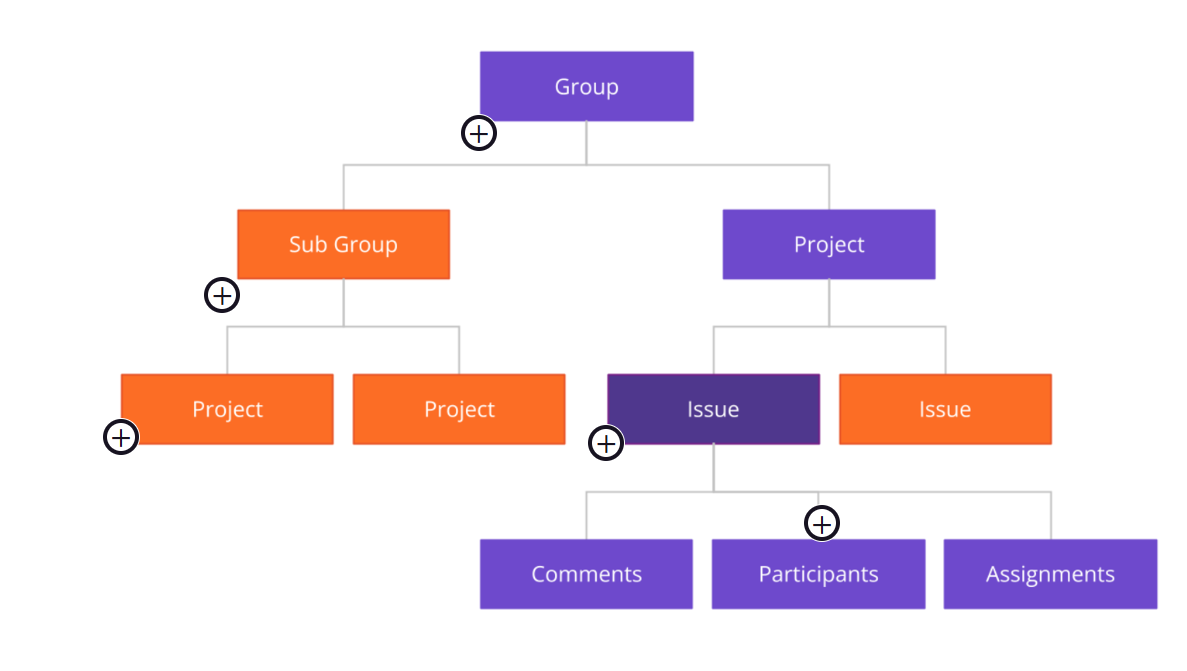
If you look at the overall organization structure within GitLab from a project management viewpoint, the Group, Subgroup, and Project relationship could be thought of together as portfolio or program management.
Key things to remember
- GitLab Projects are housed within Groups
- Groups can have any number of Subgroups
- Permissions are inherited down from the top-level groups, so add users with the least permission and give them higher permissions at the Subgroup or Project level
- Labels and Milestones created at the top-group level and are available to all Subgroups and Projects so add shared labels at the highest level possible
| Tingkat Visibilitas | Hak Akses | Catatan Tambahan |
|---|---|---|
| Private (Pribadi) | - Hanya anggota proyek atau grup pribadi yang bisa: • Mengkloning proyek • Melihat direktori akses publik ( /public) | - Guest tidak bisa mengkloning proyek. - Grup pribadi hanya bisa punya subgrup pribadi. |
| Internal (Internal) | - Semua pengguna terautentikasi, termasuk Guest, bisa: • Mengkloning proyek • Melihat direktori akses publik ( /public) | - Hanya anggota internal yang bisa melihat konten internal. - External users tidak bisa mengkloning proyek. - Grup internal bisa punya subgrup internal atau pribadi. |
| Public (Publik) | - Pengguna tidak terautentikasi, termasuk Guest, bisa: • Mengkloning proyek • Melihat direktori akses publik ( /public) | - Grup publik bisa punya subgrup publik, internal, atau pribadi. |
GitLab Epics
Epics let you manage your portfolio of projects more efficiently and with less effort by tracking groups of issues that share a theme, across projects and milestones.
Epics allow you to group related issues and epics together. This is useful if you want better visibility of related issues. For example, you might want to see all of the issues in a project in a roadmap and generate a Gantt chart for your program or portfolio.

Key things to remember
- Epics are defined at the Group level.
- Epics can contain both issues and epics as children.
- Epics can be used as a filter in issue lists and issue boards.
- Epics provide visibility on child epics, issue statuses, and the roadmap timeline.
- Epics do not have an Assignee.
- Epics cannot be created in Projects.

You can even opt to have confidential epics. Confidential epics are visible only to members of a project with sufficient permissions. Confidential epics can be used by open source projects and companies alike to keep security vulnerabilities private or prevent sensitive information from leaking out.
GitLab Issues
Issues are the basic building blocks of planning development work and are used to collaborate on ideas and planning work in GitLab. You should create a new issue whenever you are developing a new feature to be implemented in one of your applications. When you create an issue in GitLab, you can view multiple DevOps Lifecycle Stage properties, such as the related epics, merge requests, milestone dates, boards, roadmaps, labels, and more.
You can also use issues for:
- Discussing the implementation of a new idea
- Managing an incident
- Asking questions
- Reporting bugs
Key things to remember
- Issues are defined in the scope of a Project, not a Group. Issues only exist in projects. While Groups have boards that manage issues and lists of issues, the issues always are stored in a project that is subordinate to the group.
- GitLab Groups do not have issues. Groups have Epics.
- An issue can only be the child of a single epic.
- Limitations: An issue cannot be added to more than one Milestone.
There are many detailed parts of an issue, such as:
- Time tracking
- Weight
- Participants and notifications
- Mentions
- Related issues
- Related Merge Requests
- Comments
Quick Actions are effectively commands that make it easy and efficient to change an issue such as:
/assignfollowed by a user ID, will assign the issue to a person/closewill close an issue/duplicates followed by an issue number will close the current issue as a duplicate and link to the given (open) issue
In each project, a set of Issue Templates can be defined to make it easy to create common issues for different situations or problems. In a similar manner to epics, issues can be confidential, to avoid information leakage.
Labels in GitLab
Labels are a powerful, flexible way to categorize Epics, Issues, and Merge Requests. When applied appropriately and consistently, Labels enable GitLab users to discover (search), filter, manage, and report on multiple work items.
By default, Labels are not exclusive. An Epic, Issue, or Merge Request can be labeled multiple times by multiple people, supporting many different use cases and views. The exception to this rule is the Scoped Label, which specifies a set of mutually exclusive Labels. When one Scoped Label is applied, it automatically replaces any previous Label in that set.
Scoped Labels are used to:
- Assign status
- Support workflows
- Segment items into "either / or" situations
Key things to remember
There are two types of labels in GitLab:
- Project labels can be assigned to Issues and Merge Requests in that project only.
- Group labels can be assigned to Epics, Issues and Merge Requests in any project in the selected Group or its Subgroups.
- Create Labels at the lowest possible level.
- Group-level Labels should only be used for tracking at the Group level, across multiple projects and/or subgroups.
Since Group-level Labels cascade to every sub-group and project beneath them, unrestricted Group-level label creation can cause confusion and clutter. For example, if multiple teams create 'High Priority' labels at the Group level, all of them would show up in the Label menu for every project within the group.
To minimize clutter and reduce the possibility of incorrect double-counts, always consider creating Scoped Labels to automate Label management, rather than depending on users to remove invalid labels as they assign new ones.
You can also assign and unassign labels with quick actions:
- Assign labels with
/label. - Remove labels with
/unlabel. - Remove all labels and assign new ones with
/relabel
Refresher on the GitLab Workflow
The following example shows how each change, no matter how small, starts with an issue. Something as small as a discussion can lead to larger beneficial changes in the organization.
Step 1: Create and Discuss a New Issue
- Team creates an issue
- Team applies
workflow::discussionscoped label - Team discusses using Comments and threads
Step 2: Start with a Merge Request
- Developer creates a Merge Request (MR)
- Developer assigns issue to themselves
- Backend team starts work and developer starts writing code
- Developer adds
workflow::dev::workingonnested label
Step 3: Commit and Test
- Developer creates Commits
- Developer pushes commits to a feature-branch
- Developer monitors CI Pipeline results
- Backend team changes labels to
workflow::frontendscoped label
Step 4: Deploy to Staging
- Frontend developer starts working on issue
- Developer assigns issue to themselves
- Developer adds
workflow::dev::workingonnested label - Team reviews and refines code
- The code is deployed to a staging environment
- Team changes label to
workflow::stagingscoped label - After successful implementation team changes label to
workflow::readyscoped label
Step 5: Ready
- Technical documentation team adds
workflow::docs::reviewnested label - Marketing team adds
workflow::marketing::reviewnested label - Technical team changes the label to
workflow::docs::donewhen done - When done marketing team changes the label to
workflow::marketing::doneand addsworkflow::production
Step 6: Deploy to Production
- Release team merges MR and deploys feature to production
- Release team closes issue